Before You Build a Small Clinical Tool, Map the Data Path
Picture a small clinical tool as a place where information can move in different ways. Sometimes the information appears only on screen and disappears when the page closes. Sometimes it saves on the client’s device. Sometimes it saves on the clinician’s computer. Sometimes it travels to a server or returns to the clinician. The same-looking tool can create very different responsibilities depending on where the information goes.
Clinicians can build small tools more ethically and competently when they understand where information goes.
A tool’s data path is the route information takes through the tool. It includes what someone enters, where the information is saved, who can open it, whether it leaves the device, whether the clinician receives it, and whether a vendor touches it. Once that path is visible, the tool becomes easier to design, explain, share, and use responsibly.
Many useful tools need to remember something. A sleep diary has to save entries. A referral tracker has to remember referrals. A client-facing worksheet may need to hold information long enough for the client to print, copy, or review it later. The clinical task is making that storage intentional, visible, protected, and appropriate for the tool’s role.
That is the skill here. A clinician does not need to become a software engineer before building a grounding tool, treatment manual companion, worksheet, tracker, or scoring helper. The clinician needs to understand what kind of information the tool handles, where that information goes, and what responsibility follows from that design.
Start With the Data Path
Use the sorting guide below for assessing the risk of a tool:
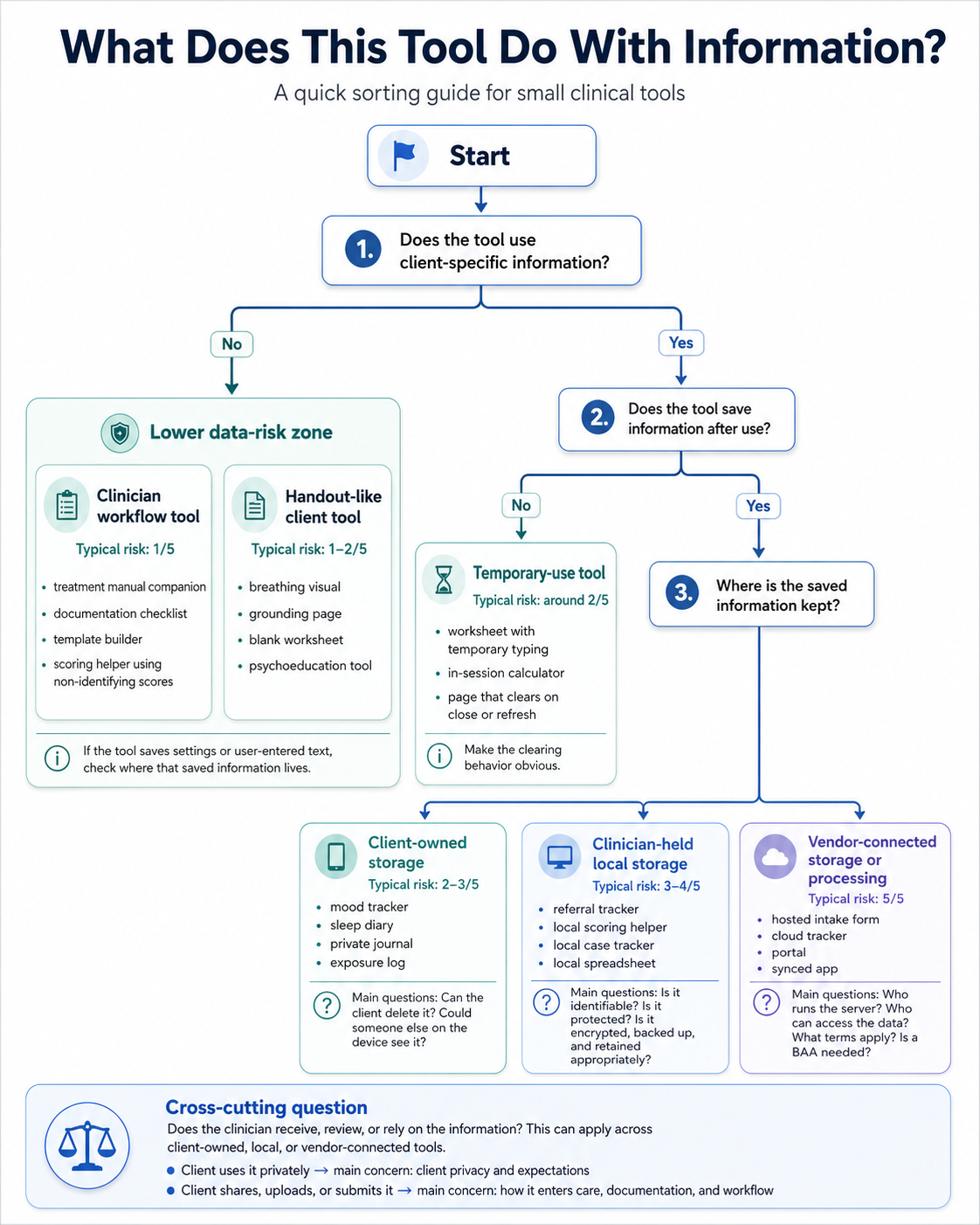
The guide starts with client-specific information because that is the first major split. A treatment manual companion with no client details belongs in a different category than a worksheet where a client types specific triggers, symptoms, or worries.
The next question is storage. A tool that clears when closed creates different responsibilities than a tracker that saves entries across weeks. Saved information can live on the client’s device, on the clinician’s device, or inside a hosted service. Those locations matter.
There is one more question to ask.
Does the clinician receive, review, or rely on the information? A client using a private mood tracker on their phone is one situation. A client bringing that tracker into session is another. A client emailing the tracker to the clinician creates more responsibility around storage, review, documentation, and response expectations.
The Risk Score Is About Practical Responsibility
This score is a rough estimate of the responsibility a tool creates. It looks at identifiability, storage, transmission, clinician possession, vendor involvement, clinical role, and security burden.
A low-risk tool usually uses generic information, non-identifying examples, or temporary input that disappears when the page closes. A higher-risk tool may store identifiable information, return information to the clinician, sync across devices, involve a server, or become part of documentation, monitoring, or clinical decision-making.
For this article, assume the clinician or practice is the covered entity. The client is not. That distinction matters when a client uses a private tool on their own device. A client writing sensitive information into a personal tracker creates a different data path than a clinician collecting, storing, reviewing, or sending that information through a practice system.
HIPAA becomes more central when individually identifiable health information is held or transmitted by the clinician or practice, or when another service handles that information for the clinician or practice. This article is not legal advice, but clinicians should know when a tool has moved from “resource” into “clinical information workflow.”
A Practical Risk Ladder
| Risk level | Tool type | Identifiability | Storage | Transmission | Clinician possession | Vendor involvement | Clinical role | Security burden |
|---|---|---|---|---|---|---|---|---|
| 1/5 | Clinician workflow tool with no client data | None or fictional only | None or generic settings | None | No client information held | None | Education, planning, reference, template support | Low |
| 2/5 | Handout-like client tool | None required | None, or temporary page-only input | None | Clinician does not receive entries | None | Practice aid or psychoeducation | Low, mostly framing and instructions |
| 3/5 | Client-owned self-use tool | Possible, entered by client | Saved on client’s own device | None unless client chooses to share | Clinician does not possess data | None if fully local | Between-session practice or self-tracking | Moderate for client device privacy |
| 4/5 | Clinician-side local tool with client data, or client-returned data | Yes, or reasonably possible | Local file, browser storage, app storage, export, email attachment | May move from client to clinician | Clinician receives, stores, reviews, or relies on it | None if truly local | Documentation, care planning, scoring, monitoring, clinical review | High. Access control, encryption, backups, retention, deletion |
| 5/5 | SaaS-like or vendor-connected tool | Yes, or reasonably possible | Cloud database, server logs, accounts, synced storage | Yes. Upload, sync, analytics, email, server processing | Clinician and/or vendor may possess data | Yes, if third party handles health information | Clinical software, monitoring, forms, documentation, communication | Highest. Vendor review, BAA/privacy terms, logs, breach planning, security controls |
Clinician Workflow Tools With No Client Data
Typical risk is 1/5.
Clinician workflow tools help with planning, learning, organizing, reference, or documentation structure. This is usually the easiest place to start because the clinician can practice building and testing tools while keeping the data path simple.
This is more like a desk reference, laminated checklist, treatment manual bookmark, or blank template binder. The tool helps the clinician work without holding client material.
Examples include
- treatment manual companion
- session planning checklist
- documentation requirement lookup helper
- measure scoring helper using non-identifying scores
- note template builder
- supervision question organizer
A treatment manual companion might help a clinician find the right section, remember session sequence, track which skills have been introduced, or prepare a session outline. A note template builder might help a practice design better documentation structures before recreating those sections in an EHR. A scoring helper might explain score ranges or interpretation language using non-identifying scores.
Data path
The clinician opens the tool.
The tool uses generic content, sample material, non-identifying scores, or blank templates.
No client-specific information enters the tool.
Saved settings are generic, if anything is saved.
No client data is created, stored, or transmitted.
Keep the tool generic if it can do the job without client material.
Handout-Like Client Tools
Typical risk is 1–2/5.
Handout-like client tools behave like interactive worksheets, visuals, exercises, or psychoeducation pages. They may run in a browser, but they do not save or send client information.
This is like a worksheet or coping card with buttons. It may be more engaging than a PDF, but it plays the same basic role.
Examples include
- breathing animation
- grounding exercise
- blank thought record
- psychoeducation visual
- exposure ladder template with no saving
- coping skills page that clears when closed
A grounding tool might guide a client through paced breathing or sensory orientation. A blank thought record might let the client type into fields during use, then clear everything when the page refreshes or closes. A psychoeducation visual might explain avoidance cycles, sleep pressure, panic symptoms, or emotion regulation skills.
Data path
The client opens the tool.
The client may type temporary text into fields.
The tool does not save entries after closing, refreshing, or pressing reset.
Nothing is sent back to the clinician.
No vendor receives the content.
The clinical task is framing. The client should know what the tool is for, when to use it, and what to do when they need direct support. A grounding page is a practice aid. A thought record is a worksheet. A coping skills page is not a monitored crisis tool.
Temporary-Use Tools With Client-Specific Information
Typical risk is 2–3/5.
Temporary-use tools can involve client-specific information during use, while still clearing that information afterward. This category is easy to miss because the tool may feel more serious than a handout, but it may not save anything.
This works more like a whiteboard in session. The client’s specific situation may be written down while you are working, then erased before the room is used again. The erasing matters.
Examples include
- in-session scoring calculator
- worksheet with temporary typing
- exposure hierarchy sorter with no saving
- symptom rating calculator
- page used during session that clears before the client leaves
An in-session scoring calculator might accept raw scores, calculate totals, and show a range or interpretation. A worksheet might hold a client’s thought, worry, or trigger while the clinician and client discuss it. An exposure hierarchy sorter might let the client rank situations during session, then copy the final list into an appropriate handout or record before clearing the page.
Data path
The client or clinician enters client-specific information during use.
The information stays on screen temporarily.
The tool does not save the entries after reset, refresh, or close.
The clinician documents clinically relevant results elsewhere when needed.
The tool should make clearing behavior obvious.
Temporary information can still be sensitive. The tool should have an obvious reset button, plain language about what happens when the page closes, and no hidden saving. If names, risk content, or detailed assessment information appear on screen, treat the tool with more care even if it clears afterward.
Client-Owned Self-Use Tools
Typical risk is 2–3/5.
Client-owned self-use tools let the client enter and save information on their own device. The clinician does not automatically receive, monitor, store, or rely on that information.
This is similar to a client downloading a mood tracker, journal app, or sleep diary from the app store for personal use. The client may enter sensitive information, but the information stays with the client unless they choose to share it.
Examples include
- mood tracker saved on the client’s phone
- sleep diary saved in the client’s browser
- private journaling tool
- coping card builder saved locally
- exposure practice log the client keeps for themselves
This category can be useful for between-session work because some tools need memory. A sleep diary works better when it can show patterns across nights. An exposure practice log works better when the client can review what they tried, what they expected, and what happened. A coping card builder may need to save the client’s own language.
Data path
The client enters information into the tool.
The tool saves entries on the client’s own device, such as browser storage or a local file.
The clinician does not receive entries automatically.
The client controls whether to show, print, export, or share the information.
The tool needs a visible way to reset, clear, or delete saved content.
The client should understand what the tool saves, where it saves, how to clear it, and whether someone else using the same device might see it. The tool should avoid hidden syncing, automatic uploads, or language that implies the clinician is watching.
Clinician-Held Local Tools With Client Data
Typical risk is 3–4/5.
Clinician-held local tools store client information on the clinician’s device or local practice system. The information may never go to a cloud service, but the clinician or practice still possesses it.
This is akin to a spreadsheet, scoring workbook, local document, or paper file kept in the office. The format changed. The responsibility remains.
Examples include
- referral tracker with names
- local scoring helper with identifiable assessment data
- local case tracker
- treatment-plan tracker with names or dates
- local spreadsheet used for administrative follow-up
A referral tracker usually needs names. A scoring helper may need real scores. A local case tracker may need dates, follow-up steps, referral sources, or other identifiers. These tools can be practical and appropriate, but they belong inside the clinician’s privacy and security workflow.
Data path
The clinician enters client information.
The tool saves it locally on the clinician’s device or practice system.
No vendor receives it if the tool is truly local.
The clinician controls access, backup, retention, deletion, and export.
The information may become part of clinical or administrative workflow.
This is where encryption starts to matter. Encryption helps protect stored information if a device, file, or database is accessed by someone without permission. It does not decide what should be collected, who should access it, how long it should be kept, or whether it belongs in the clinical record.
Local tools still need decisions about device access, passwords, backups, shared computers, deletion, and retention. A file saved locally can still end up in cloud backup, email, downloads, screenshots, or the wrong folder.
Client-Returned Tools
Typical risk is 4/5.
Client-returned tools collect, organize, or generate information that comes back to the clinician. This can happen through email, upload, printout, screenshot, export, or showing the tool during session.
This is more like a client bringing in a completed worksheet, emailing a sleep log, or showing a mood tracker during session. The information enters care when the clinician receives, reviews, or relies on it.
Examples include
- emailed worksheet
- exported sleep log
- tracker reviewed in session
- symptom ratings submitted before appointment
- exposure practice record brought to therapy
This is different from private client use. Once the clinician receives the material, it may affect documentation, treatment planning, risk assessment, monitoring expectations, or the clinical record.
Data path
The client enters information into a tool.
The client shares it with the clinician by showing, printing, emailing, exporting, or uploading it.
The clinician receives, reviews, or relies on the information.
The material may need to be documented, stored, or handled as part of care.
Expectations about review and response time need to be explicit.
A tool can look simple to the client while creating a more serious workflow for the clinician. Make it clear if the tool is reviewed only during appointments, if it should not be used for emergencies, and if the clinician will not monitor entries between sessions.
SaaS-Like or Vendor-Connected Tools
Typical risk is 5/5.
SaaS-like tools use outside services, accounts, servers, cloud storage, analytics, syncing, or vendor infrastructure. This is where a small tool starts acting like software infrastructure.
This is more like an online intake portal, hosted form, cloud database, or shared practice app. The tool depends on someone else’s system.
Examples include
- hosted intake form
- cloud tracker
- client portal
- synced app
- shared dashboard
Here, the clinician needs to understand who runs the server, what information is stored, what logs are created, who can access the data, how long it is retained, how it can be deleted, what terms apply, and whether a BAA is needed.
Data path
The client or clinician enters information into a hosted page or app.
The data leaves the device.
A server, cloud service, or vendor system receives the data.
The vendor may store, log, process, or provide access to the data.
The clinician needs to evaluate privacy terms, security controls, retention, access, and agreements.
Hosted tools can be useful. They also require more planning before clinical information enters the system. A simple-looking form can still create server logs, account records, email notifications, analytics events, database entries, and vendor access.
AI APIs belong in this broader vendor-connected category, but they deserve their own article. Sending clinical text to an AI model provider raises additional questions about model processing, retention, training policies, contractual terms, and clinical appropriateness.
The Same Tool Can Move Categories
A tool’s category depends on its data path.
An exposure ladder can be a handout-like tool if it saves nothing. It can be a temporary-use tool if the client enters specific fears during session and clears the page afterward. It can be a client-owned self-use tool if the client saves entries only on their own device. It can become a client-returned tool if the client sends it back to the clinician. It can become vendor-connected if it syncs through accounts or stores data in a cloud dashboard.
A scoring helper works the same way. A tool that explains score ranges using non-identifying scores belongs near the low end. A local calculator that processes identifiable assessment data during session sits higher. A cloud scoring tool that stores client records and generates reports belongs in the vendor-connected category.
A referral tracker also changes with the data path. A generic referral workflow checklist has low data risk. A local tracker with names and follow-up dates becomes clinician-held local storage. A shared cloud tracker used across staff becomes vendor-connected infrastructure.
The idea is not usually the main risk. The route information takes through the tool is what changes the responsibility.
What Clinicians Should Understand Before Building Higher-Responsibility Tools
Clinicians do not need to climb this ladder. Use it as a map. A clinician may stay entirely in low-risk territory and still build useful tools. A clinician who wants to build tools that save, return, sync, or store client-specific information needs enough understanding to explain the tool plainly.
Key questions
What information enters the tool?
Where is it stored?
Does it leave the device?
Does the clinician receive or rely on it?
Is a vendor involved?
Can the information be cleared or deleted?
These questions are part of competence and good design. A clinician should be able to explain the tool’s data path before sharing it with a client or relying on it in care.
Once you map the data path, match the tool to a workflow that already makes sense for that kind of information.
If the Tool Saves Nothing
A tool that clears after use should say so inside the tool.
Example language
This tool does not save your entries. Copy, print, or write down anything you want to keep before closing the page.
When vibe coding, ask for
- no saved user input
- no browser storage, cookies, analytics, external scripts, or network requests
- a visible Clear or Reset button
- entered content to clear on refresh or close
- a short note explaining that entries are temporary
If the Tool Saves on the Client’s Device
A client-owned tool should explain what it saves, where it saves, and how the client can delete it.
Example language
Entries are saved on this device. They are not sent to your clinician. Use the delete button to clear them. Someone else using this device may be able to see saved entries.
When vibe coding, ask for
- local storage on the client’s device
- a Delete All Data button
- no automatic sharing
- no login, sync, database, analytics, or external scripts
- a visible note explaining where entries are saved
If the Client Brings Information Back
Client-returned information is easiest to manage when it is reviewed in session. The client can show the tool, read from it, bring a printout, or discuss the result without creating another digital copy.
If the material needs to be sent digitally, use the practice’s approved communication method, such as an EHR portal, secure upload, or HIPAA-configured communication system. The tool should not create a new return path just because AI can build one.
Clarify
- whether the clinician reviews it between sessions
- whether it belongs in the record
- what the client should do for urgent or emergency concerns
If the Clinician Stores Client Data Locally
Clinician-held local tools should live inside the same privacy workflow the clinician already uses for clinical or administrative records.
A referral tracker, scoring workbook, or case spreadsheet should not sit casually in Downloads or on a shared desktop. Put it where client-related files already belong. Protect the device. Know whether that folder syncs to iCloud, OneDrive, Google Drive, Dropbox, or another service.
Encryption is like putting a lock around information. It makes saved or transmitted information unreadable without the right password, key, account, or device access. Clinicians already rely on encryption in ordinary clinical systems, including EHRs, secure portals, protected devices, encrypted drives, and HIPAA-configured cloud services.
For identifiable client information saved or sent electronically, encryption should usually be part of the workflow. HIPAA treats encryption as an addressable safeguard, which means the clinician or practice should assess it, use it when reasonable and appropriate, or document why another safeguard is being used. Encryption protects the contents of stored or transmitted information, but it does not replace access controls, approved storage, vendor review, BAAs, backups, retention, or deletion decisions.
For local tools, the basic rule is simple. Identifiable client information should usually be encrypted when it is saved, exported, backed up, or moved. That might mean using a device with full-disk encryption, saving files inside an approved protected folder, exporting a password-protected file, or using an encrypted practice storage system.
Clinicians generally should not start by asking AI to invent a custom encryption system. Start by fitting the tool into an approved workflow. Use a protected device, an approved folder or clinical storage system, a secure portal, a HIPAA-configured workspace, or an EHR. Add password-protected export or file encryption when files may be moved or shared. Consider app-level encryption only when the tool itself will keep identifiable client information over time.
When vibe coding, ask for
- local storage
- no network requests
- no analytics or external scripts
- clear language showing where information is saved
- export to a format your existing workflow can store properly
- password-protected export when files may be moved or shared
- no custom app-level encryption unless you actually need the tool to keep its own client database
- a clear delete or archive process
If a Vendor or Server Is Involved
A hosted tool needs more review before clinical information enters it.
Before using it with client information, know who runs the server, what gets stored, what gets logged, who can access it, how long data is retained, how data can be deleted, what terms apply, and whether a BAA is needed.
Information traveling to or from a server should be encrypted in transit. Information stored by the service should also be protected at rest. Those protections are expected parts of a clinical data workflow, but they are still part of a larger picture. The clinician also needs the right vendor relationship, account controls, access permissions, retention practices, and communication expectations.
When vibe coding, avoid casually adding
- accounts
- sync
- databases
- dashboards
- email submission
- cloud storage
- analytics
- external scripts
Those features can be appropriate, but they change the project. They move the tool from a small local or client-owned resource into a vendor-connected workflow.
AI APIs belong in this broader category, but they deserve their own article. Sending clinical text to an AI model provider raises additional questions about model processing, retention, training policies, contractual terms, and clinical appropriateness.
Conclusion
Small clinical tools are safest when clinicians can explain their data path.
That does not mean every tool has to avoid storage, client-specific information, or clinical use. Some tools need memory. Some tools need names. Some tools need to return information to the clinician. Some tools belong inside an existing clinical workflow rather than outside it.
The task is to build with the data path in mind. Know what enters the tool, where it is saved, who can access it, whether it leaves the device, whether it returns to the clinician, and whether a vendor touches it. When identifiable client information is saved or sent, use the same seriousness you would use with any other clinical information: approved storage, appropriate access, encryption where it belongs, and a clear plan for review, retention, and deletion.
AI gives clinicians a way to build tools they may never have been able to build before. That makes the data path part of clinical competence. A clinician who can explain what the tool collects, where information goes, who can access it, and how it is cleared or retained is in a much better position to make better decisions about when a small tool belongs in clinical work.
Subscribe for future posts
If you want new writing at the intersection of AI and psychology, ethics, and implementation of AI in clinical practice, subscribe on Substack.
The views expressed here are my own and do not necessarily reflect the views of any current or future employer, training site, academic institution, or affiliated organization.